Water in Charging Port? What to Do and How Long to Wait
Water in your charging port? Unplug, tap it port-down and let it air-dry. Drying times from Apple, Samsung and Google, plus what each warning means.
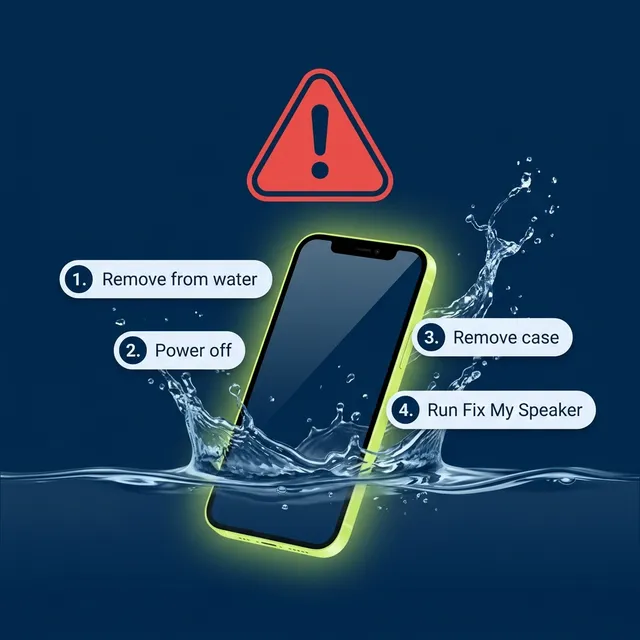
If water gets in your charging port, unplug the cable, tap the phone gently port-down against your hand and let it air-dry. Retry after 30 minutes. An iPhone or Galaxy can still charge wirelessly. Apple allows up to 24 hours, Samsung about 1 to 2 hours, and Google says to contact it after 2 hours.
What to do right now
To get water out of a charging port, unplug the cable and tap the phone gently with the port facing down. Then leave it somewhere with moving air. All three makers give this method.
- Unplug the cable from the phone and from the charger. Google warns the cable may be warm.
- Wipe the outside of the phone with a soft, lint-free cloth.
- Hold the phone with the port facing down and tap it gently against your hand. Samsung suggests 5 to 10 gentle shakes and warns that too much force can damage the phone.
- Leave it in a dry place with airflow. Apple says a fan blowing cool air into the port might help, and Samsung and Google both suggest turning the phone off while it dries.
- Wait at least 30 minutes before you plug a cable back in. If the warning comes back, leave it longer.
If the whole phone went into a sink, pool or toilet, follow the full steps for a phone dropped in water instead. Samsung tells owners of its water-resistant phones to rinse the phone in fresh water after any other liquid, then dry it with a soft cloth.
How long a wet charging port takes to dry
A wet charging port usually clears within 30 minutes to a few hours, but each maker publishes its own figure. Apple publishes two.
- Apple says to retry after at least 30 minutes. If the alert returns, drying “might take up to 24 hours”. Its water-resistance page separately says to allow at least 5 hours before charging with a Lightning or USB-C cable.
- Samsung says water in the port evaporates “within approximately 1 to 2 hours”.
- Google says to wait a few minutes after the port is dry for the “OK to use USB port” message. If the liquid warning lasts 2 hours or more, contact Google.
In practice, try again at 30 minutes and keep the cable out while any warning shows. A Pixel that still warns after 2 hours needs Google’s help, while Apple gives an iPhone a full day. If you can wait, we’d give a soaked iPhone Apple’s more cautious 5 hours.
What each phone’s warning means
Every charging port warning means the phone found liquid or moisture in the port and stopped cable charging to protect it. The wording differs by maker, and Apple uses four separate alerts.
| iPhone | Samsung Galaxy | Google Pixel | |
|---|---|---|---|
| Warning | 4 alerts, depending on the port and accessory | Water drop icon, “Moisture detected” error, alarm until unplugged | ”Liquid or debris in USB port”, then “OK to use USB port” once clear |
| Phones with detection | iPhone XS, XS Max, XR and later | IP68 models and above (most of the Galaxy range) | Not listed by Google |
| Maker’s drying time | Retry after 30 minutes; up to 24 hours; at least 5 hours before cable charging | About 1 to 2 hours | A few minutes once the port is dry |
| Tap or shake | Tap gently against your hand, port down | Shake gently 5 to 10 times, port down | Tap gently, port down; if wet, power off and lay flat |
| Wireless charging while wet | Yes, on a Qi-certified charger, once the back is dry | Yes on supported models, once the phone is dry | Not addressed by Google |
| Emergency override | Yes, by reconnecting the cable | None documented | None documented |
| Warning on a dry phone | Try another cable or accessory | Update, restart, clear the USB Settings cache, try another cable | Clear the USB Settings and Android System cache |
| When to get service | Every Apple cable triggers the alert | The icon stays after Samsung’s steps | The message lasts 2 hours or more, or the port looks burned, melted or corroded |
The four iPhone alerts depend on the port and on what you plugged in:
- “Charging not available” appears when you connect a Lightning iPhone to a charger.
- “Liquid Detected in USB-C Connector” appears on iPhones with a USB-C port.
- “Liquid detected in Lightning Connector” appears when you connect a Lightning accessory that doesn’t charge the phone.
- “Liquid Detected” appears when you connect a USB-C accessory.
On a Pixel, “Unplug charger” is a different message. It’s about heat, not liquid.
Can you charge a phone with a wet port?
No, not with a cable. Apple says charging while the connector is wet can corrode the pins and cause permanent damage. Wireless charging is a separate question, and the answer depends on the maker.
- Apple says you can use a Qi-certified wireless charger. Wipe the phone and make sure the back is dry first.
- Samsung says wireless charging on supported models is “not affected by moisture”. Dry the phone first and centre it on the pad, and keep a foldable closed.
- Google’s Pixel help page doesn’t address wireless charging with a wet port, so don’t assume it works the same way.
The iPhone emergency override
An iPhone lets you override the liquid alert. Reconnect the cable and the phone offers to charge anyway “in an emergency”.
Use it only when you have no other way to power the phone. The override charges through the same wet pins the alert exists to protect. A wireless charger or a short wait costs far less than a new port. Samsung and Google document no override. Samsung’s older moisture page says the phone sounds an alarm until you disconnect the charger.
What not to do
Don’t push anything into the port, and don’t use rice, heat or compressed air. Each of these warnings comes from a maker’s own support page.
- Cotton swabs, paper towel or any other object. Apple, Samsung and Google all say to insert nothing.
- Rice. Apple says rice particles could damage the iPhone. Samsung and Google don’t mention it, and our list of common speaker cleaning myths explains why it fails.
- A hair dryer or any other heat source. Apple says no external heat, and Google says to dry a Pixel at room temperature.
- Compressed air. Apple says not to use it.
- Plugging the cable back in to test it before 30 minutes are up. Apple says not to reconnect anything until the port is dry.
The warning won’t go away but the port is dry
A warning on a dry phone can come from humidity, a damaged cable or old data cached in the phone’s USB settings. Each maker has its own fix.
On an iPhone, notice whether one cable or accessory always triggers the alert. If it does, Apple says that accessory may be damaged and to contact its maker. If the port is dry and the phone still won’t charge, Apple suggests unplugging the power adapter and plugging it back in.
On a Samsung Galaxy, work through these steps in order:
- Update the phone’s software.
- If the air is humid, dry the phone and restart it. Steam from a kitchen or bathroom can trigger the sensor with no water in the port, so charge somewhere drier.
- Clear the USB Settings cache: Settings > Apps > show system apps > USB Settings > Storage > Clear cache.
- Try a different cable.
On a Pixel, clear the cache for USB Settings and for Android System. If the message stays, contact Google.
Can a sound or vibration get water out of the charging port?
No. A water eject tone plays through the loudspeaker, and no speaker sits behind the charging port. The sound has nothing to push the water with. Apple, Samsung and Google don’t mention sound or vibration anywhere in their port advice. Their method is tapping, airflow and time.
It’s an odd thing for a speaker-tool site to say, but no tone will dry a port. What a tone can clear is the speaker grille next to it. On an iPhone the loudspeaker grille sits beside the port, so it often gets wet at the same time.
Apple notes that water in the speaker opening can muffle sound until it evaporates. If your audio sounds dull after the splash, play a water eject tone with the speaker facing down, or use Fix My Speaker if you also suspect dust. If the speaker has gone silent instead, work through why a phone speaker stops working. For model-specific steps, use the iPhone speaker cleaner or the Samsung speaker cleaner.
When to get it checked
Get the phone checked when the warning outlasts the maker’s own limit or the port looks damaged.
- iPhone: every Apple cable triggers the alert, or the alert is still there after 24 hours.
- Samsung Galaxy: the water drop icon stays after you’ve followed Samsung’s steps. Contact Samsung Support or a Samsung Service Centre.
- Google Pixel: the liquid message lasts 2 hours or more, or the port looks burned, melted or corroded.
Apple and Google both say liquid damage isn’t covered by warranty. Ask what a repair costs before you book it.
Last checked: November 2026.
Frequently asked
How do I fix water in my charging port?
To fix water in a charging port, unplug the cable at both ends and tap the phone gently against your hand with the port facing down. Leave it in a dry place with moving air, and keep cables out for at least 30 minutes. Don't put a cotton swab or any other object in the port, and skip rice, heat and compressed air.
How long until liquid detected goes away?
How long a liquid-detected warning lasts depends on the maker. Apple says to retry after 30 minutes and allows up to 24 hours. Samsung says the water evaporates in about 1 to 2 hours. Google says the Pixel message clears a few minutes after the port is dry, and to contact it if the message lasts 2 hours or more.
Is it okay if my charging port is wet?
Yes, a wet charging port is fine for a short time, as long as you don't charge through it. Apple says charging with a wet connector can corrode the pins and cause permanent damage, so the phone blocks cable charging. iPhones and supported Galaxy phones can still charge wirelessly once dry. Google's Pixel help doesn't cover wireless charging.
Why does my phone say there's moisture when there isn't?
A moisture warning on a dry phone can come from high humidity, a damaged cable or old data cached in the phone's USB settings. Samsung suggests drying the phone, restarting it and clearing the USB Settings cache. Google suggests clearing the USB Settings and Android System cache. Apple says a single accessory that always triggers the alert may be damaged.