Phone Speaker Not Working? Fix It in This Order
Phone speaker not working? Sort the problem by symptom, then check Silent mode, Bluetooth, your phone's own speaker test and when to book a repair.
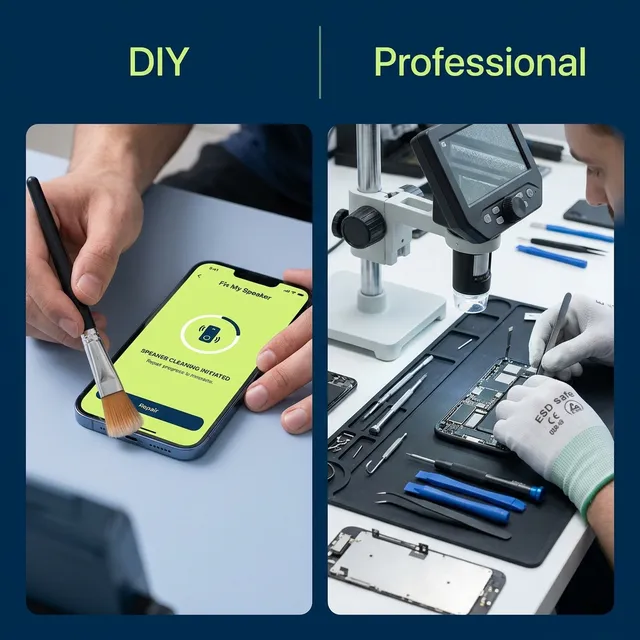
If your phone speaker is not working, first work out whether it's silent everywhere or only for some sounds. Silent ringtones with working music point to Silent mode or Focus. Silence in every app and in your phone's own speaker test points to hardware. Work through the settings checks in order before you book a repair.
Which problem do you have?
The symptom decides the fix, because a silent ringtone and a dead speaker have different causes. Find the row that matches your phone and start with that check.
| What you notice | What it points to | Start with |
|---|---|---|
| Ringtones and alerts are silent, but music and videos play | Silent mode or a Focus such as Do Not Disturb, not a speaker fault | Silent mode, Focus and volume |
| Nothing plays from any app | Low volume, Bluetooth, or audio going to another device | Where the sound is going, then a restart |
| Silent in every app and in the phone’s own speaker test | A hardware fault | Book a repair |
| No sound only on calls | Call volume, Call Audio Routing or the network | No sound only on calls |
| One speaker is silent while the other works | A problem with that one outlet | Test each speaker on its own |
| Sound plays but is quiet or muffled | A blocked grille, which is a different problem | Phone speaker sounds muffled |
The mistake to avoid is cleaning or resetting a phone that only had Silent mode switched on.
Check Silent mode, Focus and volume
If ringtones and alerts are silent but music still plays, Silent mode or Do Not Disturb is on. On iPhone, Silent mode mutes calls, alerts and sound effects, while Clock alarms, Music and many games keep playing through the built-in speaker.
Turn Silent mode off the way your iPhone allows:
- On an iPhone with a Ring/Silent switch, move the switch toward the display so no orange shows.
- On an iPhone whose Action button is set to Silent mode, press the Action button.
You can also turn Silent mode off in Control Center, or with the Silent mode toggle in Settings › Sounds & Haptics. Next, open Settings › Focus › Do Not Disturb and make sure it’s off. Then play a song and press the volume up button a few times.
On Android, swipe down to Quick settings. Check that the phone isn’t set to mute or vibrate and that Do Not Disturb is off, then turn the volume up while music plays.
Check where the sound is going
A phone that plays nothing may be sending its audio somewhere else, such as earbuds in a bag or a car stereo.
On iPhone, open Control Center, tap the AirPlay control and choose iPhone as the playback destination. The same control is on the Lock Screen and in Now Playing. A Bluetooth device hands audio back to the iPhone once it’s out of range.
Samsung’s first steps are to remove anything plugged into the headphone jack and turn Bluetooth off in Quick settings. On a Pixel, turn Bluetooth off and unplug and replug any wired headphones. You can also open the media panel, where the top right shows where sound is playing, such as “Speakers” or “Pixel Buds”.
Take off the case and any screen protector or film while you’re here, since Apple, Samsung and Google all list that step. Apple also suggests cleaning the speaker and receiver openings with a small, soft, dry brush.
Restart and update your phone
Restart the phone next, because Apple, Samsung and Google all put a restart before any deeper fix.
- On iPhone X and later, hold either volume button and the side button, then drag the slider. Wait 30 seconds and hold the side button.
- On a Samsung Galaxy, restart the phone and wait 30 seconds before you use it.
- On a Pixel 6 or later, hold Power and Volume up, then tap Restart.
Then install any waiting software update. On Samsung, go to Settings › Software update (or System updates) › Download and install.
Test the speaker with your phone’s own diagnostics
Your phone’s own speaker test tells you whether the fault is software or hardware. If the speaker stays silent in the official test after the settings checks and a restart, that points to the hardware.
| Phone | Test | How to run it | What a fail looks like |
|---|---|---|---|
| Any iPhone | Ringtone and Alerts slider | Settings › Sounds & Haptics (or Settings › Sounds), then drag the Ringtone and Alerts slider | No sound, or a dimmed speaker button |
| iPhone 14 and later | Diagnostics mode, Audio test | Turn the phone off, hold the side button while it starts up, tap Diagnostics Mode. Needs Wi-Fi | The loud test tones are missing or distorted |
| Samsung Galaxy | Speaker test in Samsung Members | Samsung Members › Diagnostics (on the Discover or Support tab) › Phone diagnostics › Speaker | No sound during the Speaker test |
| Samsung Galaxy, Android 12 and later | Phone diagnostics in Device care | Settings › Device care › Diagnostics › Phone diagnostics | No sound during the speaker check |
| Pixel 3 and later | Repair Diagnostics app | Dial *#*#7287#*#* in the Phone app while online, then follow the prompts | Google’s help page doesn’t list the tests it runs |
Diagnostics mode is part of Apple’s Recovery Assistant, not the Settings app. Samsung’s menu names vary by model. Device care is a diagnostics and maintenance tool, so it won’t fix the speaker itself.
Test each speaker on its own
When one outlet plays and the other stays silent, our stereo speaker test helps you find the dead one. It plays a 440 Hz tone on the left channel for 2 seconds, then the right channel for 2 seconds, then both together.
Listen at the earpiece above the screen and at the bottom edge while it runs. A silent outlet next to a working one narrows the problem to that opening.
On iPhone, switch Silent mode off before using the speaker test, or the browser may play nothing. Otherwise a muted tone could look like a dead speaker.
No sound only on calls
If music plays but calls are silent, check the call volume, then Call Audio Routing, then the network:
- Press the volume up button during a call.
- On iPhone, open Settings › Accessibility › Touch › Call Audio Routing. It can send calls to the speaker, a Bluetooth headset or a hearing device, so check where it sends them.
- Make a speakerphone call. Apple says static on speakerphone points to the network, not the speaker.
- On a Pixel, Google suggests checking the signal, turning Wi-Fi off and on, and switching speakerphone on and off.
If speakerphone works but callers are silent with the phone at your ear, check the earpiece opening above the screen. Our call speaker cleaner walks you through clearing it.
When callers say they can’t hear you, the microphone is the part to check, not the speaker. The muffled speaker guide explains how to tell the earpiece from the microphone in its section on calls.
Phone speaker not working after it got wet
If the speaker stopped after the phone got wet, dry the phone before anything else. Samsung says to rinse off salt water with fresh water, dry the phone and avoid compressed air. On a Pixel, also look for a “Liquid or debris in USB port” message.
Samsung adds that after a big change in air pressure, the speaker can sound quiet, crackly or distorted because of its water-resistance features. Opening the SIM tray about halfway equalises the pressure at once.
Once the outside is dry, run a water eject cycle with the speaker facing down. If you’re not sure whether it is water or dust, Fix My Speaker has a Start Cleaning mode that plays both. If the phone went fully under, follow our first steps for a wet phone.
Rule out apps and settings
If the official speaker test plays sound but your apps stay silent, an app or a changed setting is the likely cause.
On a Samsung Galaxy, start Safe mode. Touch and hold Power off in the power menu until the Safe mode icon appears, then tap Safe mode. If sound works in Safe mode, a downloaded app is the cause, so uninstall recent apps one by one.
On iPhone, go to Settings › General › Transfer or Reset iPhone › Reset › Reset All Settings. It resets Sounds & Haptics and your Bluetooth pairings, but it doesn’t delete photos, apps or messages. Apple calls this step “rarely necessary”, so try it only after everything else.
A factory reset comes last. Samsung and Google both list it as the final step, and it erases the phone, so back up first.
When the speaker itself has failed
The speaker needs a repair when it stays silent in your phone’s own test after the settings checks, a restart, an update and Safe mode. Apple says no sound or a dimmed speaker button on the Ringtone and Alerts slider means the speaker may need service. Contact Apple, Samsung or Google support to arrange it.
Our browser tools can clear a blocked opening, but they can’t repair a failed speaker. If it still plays but buzzes or distorts, read our guide to a crackling phone speaker.
Last checked: November 2026.
Frequently asked
How do I reset speaker sound?
Phones have no separate speaker reset, so restart the phone first. If sound is still missing on iPhone, go to Settings › General › Transfer or Reset iPhone › Reset › Reset All Settings. It resets Sounds & Haptics and Bluetooth pairings without deleting photos, apps or messages. On Android, Samsung and Google both list a factory reset as the last step, so back up before you try it.
How do I restore sound on my phone?
To restore sound, turn Silent mode off, check that Do Not Disturb is off and turn the volume up while music plays. Then turn Bluetooth off, because audio may be going to headphones or a car. Restart the phone next. If it's still silent, run your phone's own speaker test. A fail there points to a hardware fault that needs a repair.
How do I know if my phone speaker is blown?
Run your phone's own speaker test after you've ruled out Silent mode, Bluetooth and a restart. Apple says no sound or a dimmed speaker button on the Ringtone and Alerts slider means the speaker may need service. On iPhone 14 and later, the Diagnostics mode Audio test asks whether you hear its tones without distortion. Silence or distortion in these tests points to hardware.
Why can't people hear me on my phone?
If callers can't hear you but you hear them, the problem is your microphone or the network, not the speaker. Take off the case and screen protector, then gently wipe the microphone holes with a soft, lint-free cloth, as Google suggests. For a weak or patchy connection, check your signal and turn Wi-Fi off and on.